3 Easy Ways to Enable Candlestick Timer in TradingView

Feel The Candlesticks

Many trading strategies depend heavily on candle close confirmation, especially setups where entries, exits, or validations are considered reliable only after a candlestick has fully completed its formation.

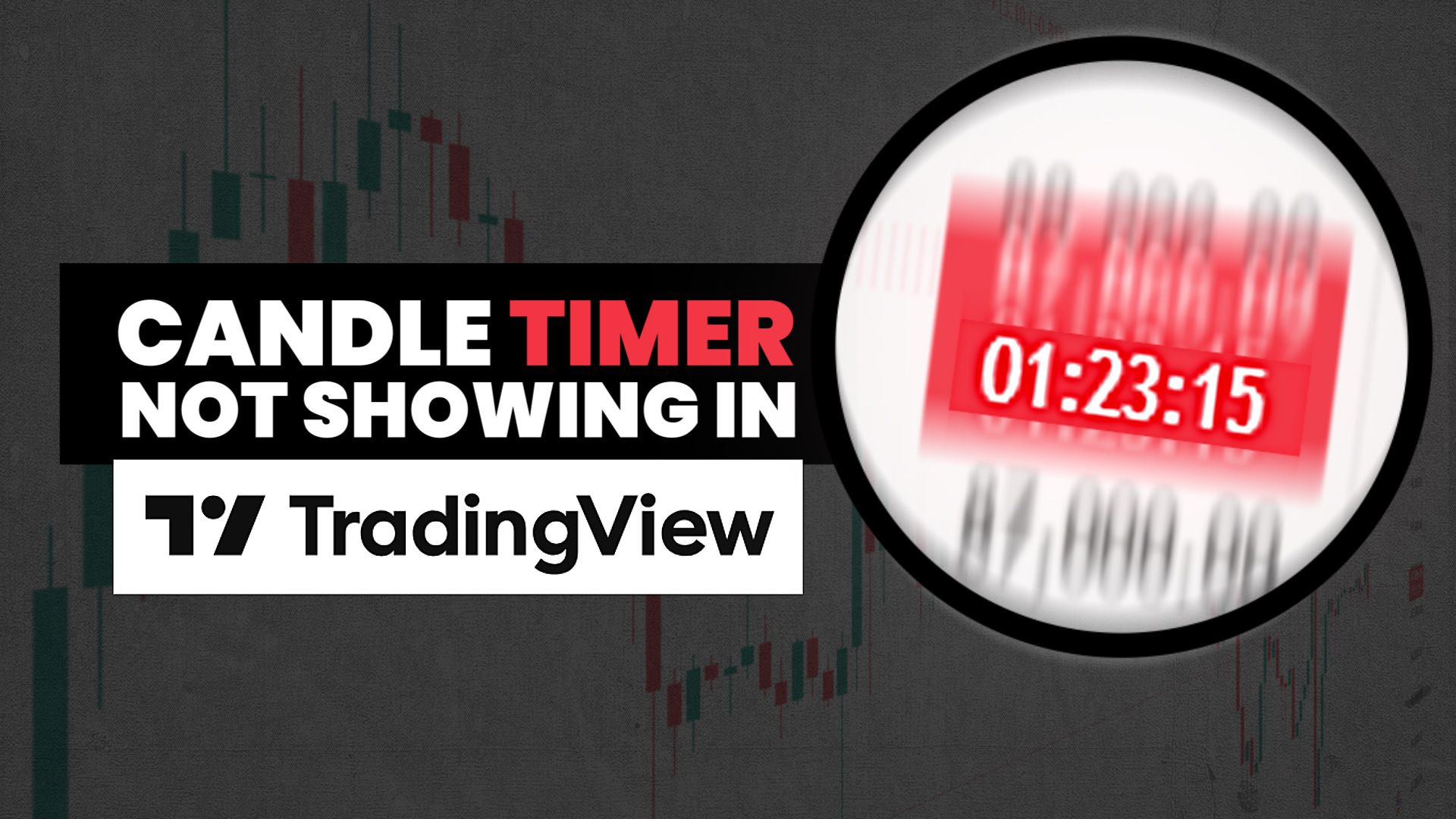
In such cases, the candlestick close timer, officially called the ‘Countdown to Bar Close’, becomes an essential visual tool. This timer shows how much time remains before the current candle closes, helping traders avoid premature decisions and emotional entries during an unfinished price move.

Why the ‘Countdown to Bar Close’ Sometimes Disappears?

In TradingView, this feature can disappear if chart settings are changed unknowingly while experimenting with customization options.

The candlestick close timer does not vanish due to a system error or platform limitation. In most cases, it is turned off unintentionally when users adjust time scale settings, modify chart preferences, or experiment with visual layouts.

Since TradingView offers extensive chart customization, it is very easy to disable certain display elements without realizing their importance at the moment.

Also Read – 3 Easy Methods to Hide Candlesticks in TradingView


If your candle time is not showing, here are 3 simple methods to enable the candle timer for any timeframe in TradingView.

Method One: Enabling the ‘Countdown to Bar Close’ from Chart Settings

The most direct and controlled way to bring back the candlestick close timer is to enable it manually from the chart settings.

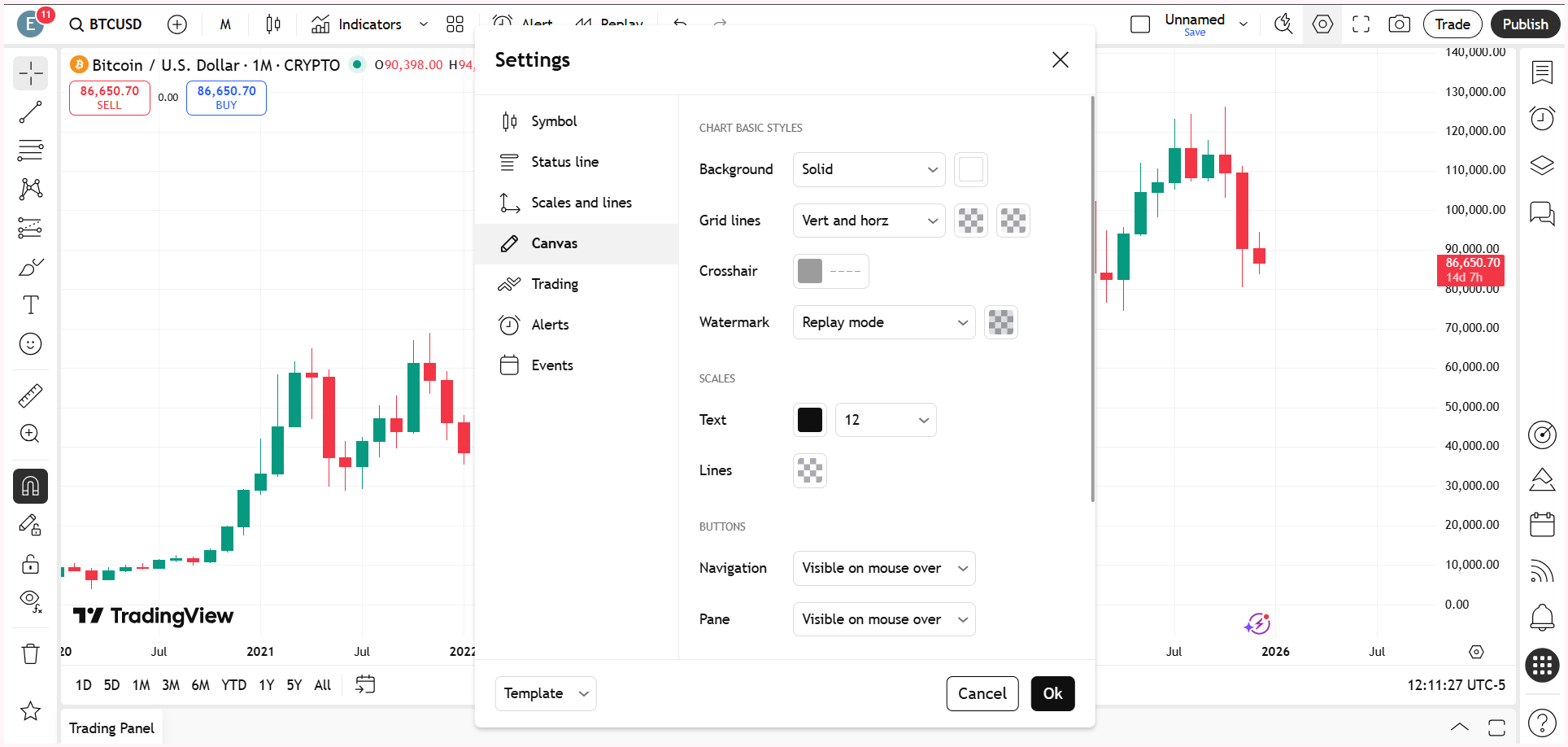
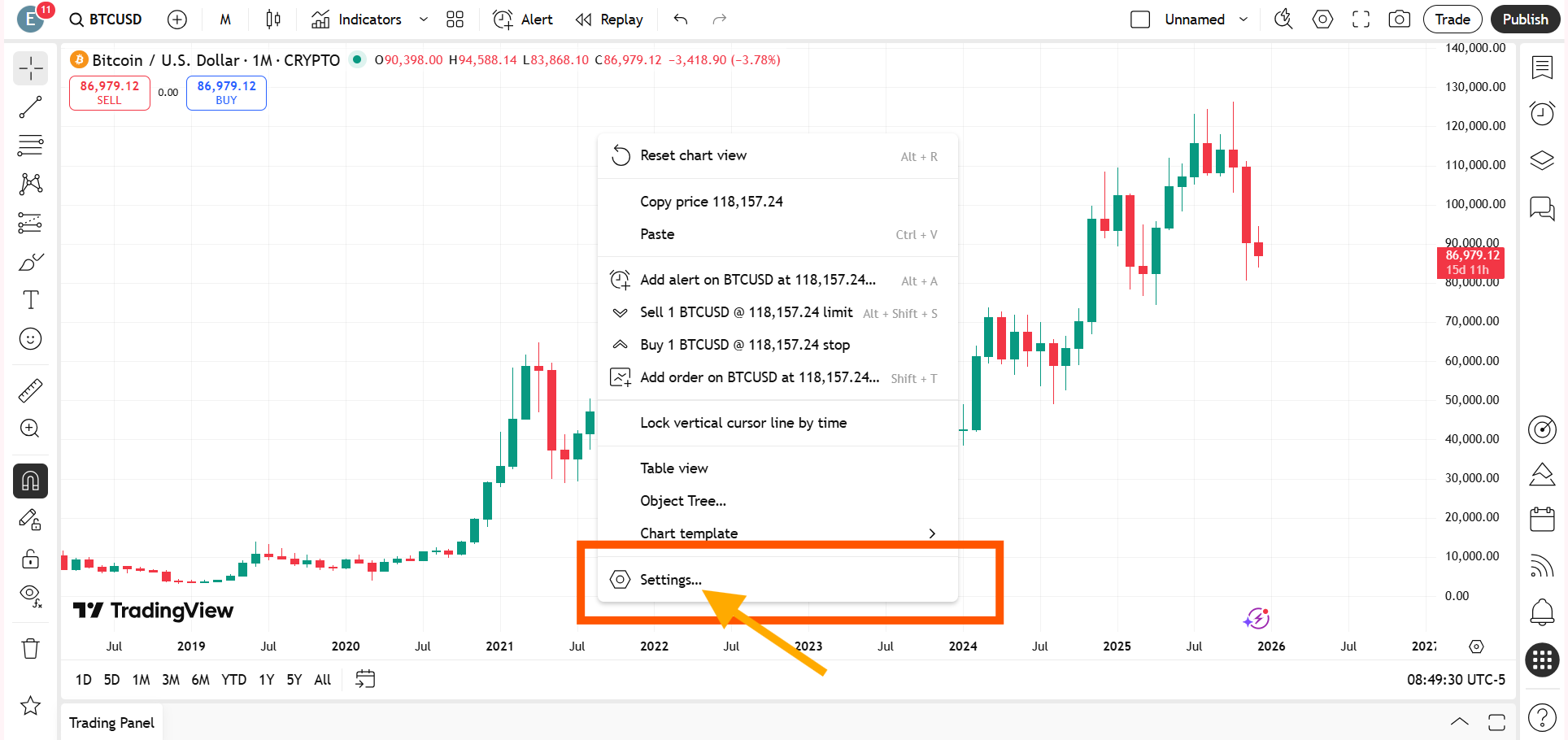
Right-click anywhere on the chart and open Settings. Then go to the Scales and Lines section and look for the option called ‘Countdown to Bar Close.’ Simply tick this option.

Once enabled, the countdown timer immediately appears on the price chart and starts showing the remaining time for the active candlestick on TradingView.

This method is ideal for traders who want to keep their existing chart layout, indicators, and visual preferences unchanged while restoring only the missing timer.

The most straightforward and controlled way to restore the candlestick close timer is to enable it manually through the chart settings.

Alternatively, you can access the Scales and Lines option by right-clicking directly on the price scale. Select More Settings, and then follow the same steps under Scales and Lines as explained above.

Method Two: Fix Candle Timer from Labels Menu

Click on the settings icon at the bottom of the price scale of the trading instrument and go to Labels.

When you hover your cursor over Labels, several options will appear. Find Countdown to Bar Close and enable it.

Once selected, the timer will start showing again.
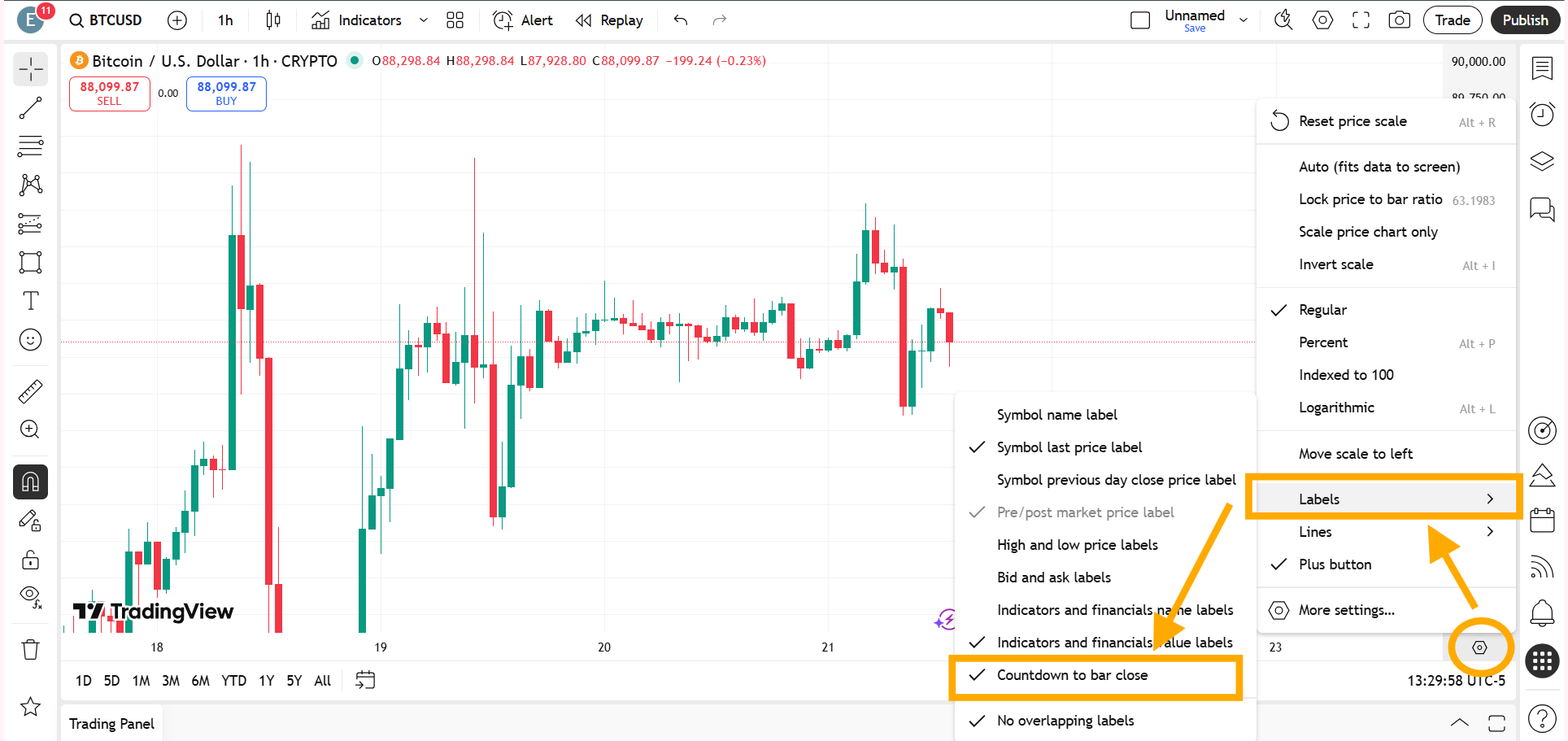
You can restore the candle close timer by clicking the settings icon at the bottom of the price scale in TradingView, navigating to Labels, and enabling Countdown to Bar Close.

Method Three: Restoring the Timer by Resetting the Chart to Default

Another effective way to enable the candlestick close timer is by resetting the chart to its default configuration.
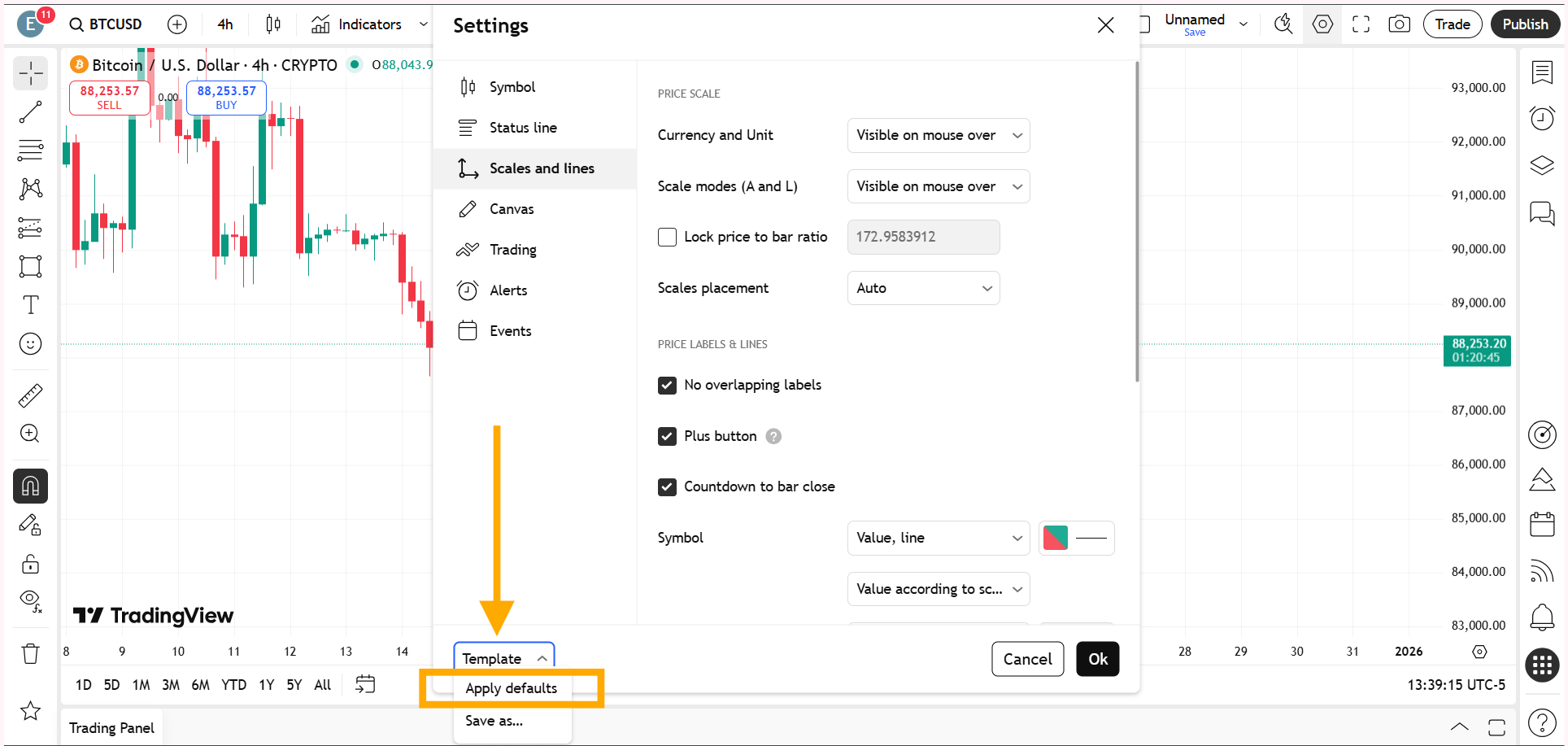
Because the Countdown to Bar Close is included in TradingView’s default chart layout, resetting the chart automatically brings the timer back along with the standard visual settings.

Since the Countdown to Bar Close is part of TradingView’s default chart setup, resetting the chart automatically restores the timer along with other standard visual settings.

By reverting the chart to its original state, all hidden or disabled features, including the candlestick close timer, become visible again.

While this approach may remove some customizations, it provides the fastest solution when troubleshooting becomes confusing or time-consuming.


Also Read – Candlesticks Not Showing or Visible in TradingView? – Complete Solution Guide

Which Method Should You Use?

All the methods ultimately lead to the same result, but the choice depends on the trader’s specific situation.

If the chart is heavily customized and only the timer is missing, manually enabling the ‘Countdown to Bar Close’ is the better option.

On the other hand, if multiple chart elements are behaving unexpectedly or the cause of the missing timer is unclear, resetting the chart to default can save time and effort.


For a better understanding, watch the full video below.

This article is for informational purposes only and should not be considered financial advice. Investing in stocks, cryptocurrencies, or other assets involves risks, including the potential loss of principal. Always conduct your own research or consult a qualified financial advisor before making investment decisions. The author and publisher are not responsible for any financial losses incurred from actions based on this article. While efforts have been made to ensure accuracy, economic data and market conditions can change rapidly. The author and publisher do not guarantee the completeness or accuracy of the information and are not liable for any errors or omissions. Always verify data with primary sources before making decisions.

What time do the 4 hour candles close?

The answer is already contained in the question itself. A 4-hour candlestick closes exactly four hours after it opens. After every four hours, the current candle closes and a new 4-hour candle begins, which will again close after the next four hours. This happens only when the selected timeframe is set to 4H.
On TradingView, you can check the remaining time for a candle to close on the right-side price scale by enabling the candle close timer. This shows how much time is left before the current 4-hour candle closes.
Candlesticks Not Showing or Visible in TradingView? – Complete Solution Guide

When candlesticks are not showing or visible in TradingView, the issue is usually straightforward once you know where to look. Whether it is caused by unticked candle settings, hidden objects, an accidental chart type switch, a color clash, or extreme zoom levels, each of these problems can be resolved directly from the chart interface.

If you open a chart and suddenly notice that candlesticks are missing, invisible, or seem to have disappeared, it can be frustrating – especially when you are actively analyzing the market. This is one of the most common TradingView chart problems and is often mistaken for a loading issue or platform bug. In reality, candles not showing on TradingView is usually caused by a few specific settings or visual conflicts that can be fixed within seconds.

This article explains all the major reasons why a TradingView chart is not showing candles and shows you exactly how to unhide candlesticks on TradingView step by step.

Why Candlesticks Disappear on TradingView?

The root cause is rarely a server-side issue. In most cases, the chart is working perfectly, but certain visual settings, chart types, or zoom levels make the candles invisible.

Understanding how TradingView handles chart styles, object visibility, and color settings will help you quickly diagnose and fix the problem.

Also Read – 3 Easy Methods to Hide Candlesticks in TradingView

5 Possible Reasons Why Candlesticks Are Not Showing in TradingView

When candles are not showing or visible in TradingView, the solution is usually simple once you know where to look. Most issues can be fixed directly from the chart interface in just a few seconds.

Before learning how to bring candles back on a candlestick chart, first make sure you are on the correct instrument. For example, in my case, the instrument is BTCUSD.

Below are the five most common reasons candlesticks are not showing on TradingView.

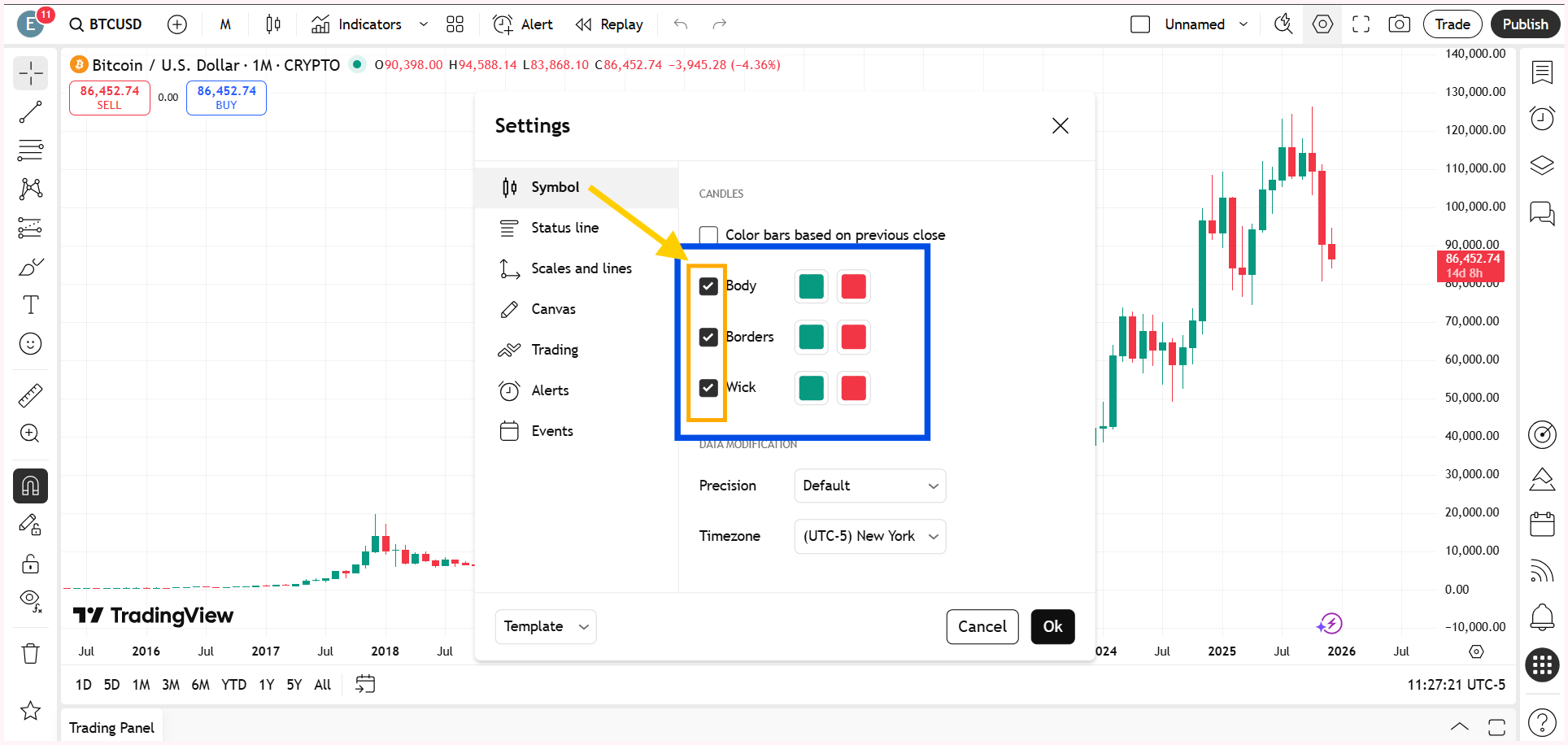
Body, Wick, or Border Accidentally Unticked in Chart Settings

One of the most overlooked reasons for candles not showing on TradingView is related to candle style settings. TradingView allows you to individually control the visibility of the candle body, wick, and border. If the body, wick, or border option is unticked, the candles technically exist on the chart but are not visible.

So, right-click on the chart and go to Settings. Within the Symbol option, make sure the body, wick, and border are ticked.

Right-click anywhere on the chart and open Settings. Inside the Symbol section, ensure that the body, wick, and border options are enabled.

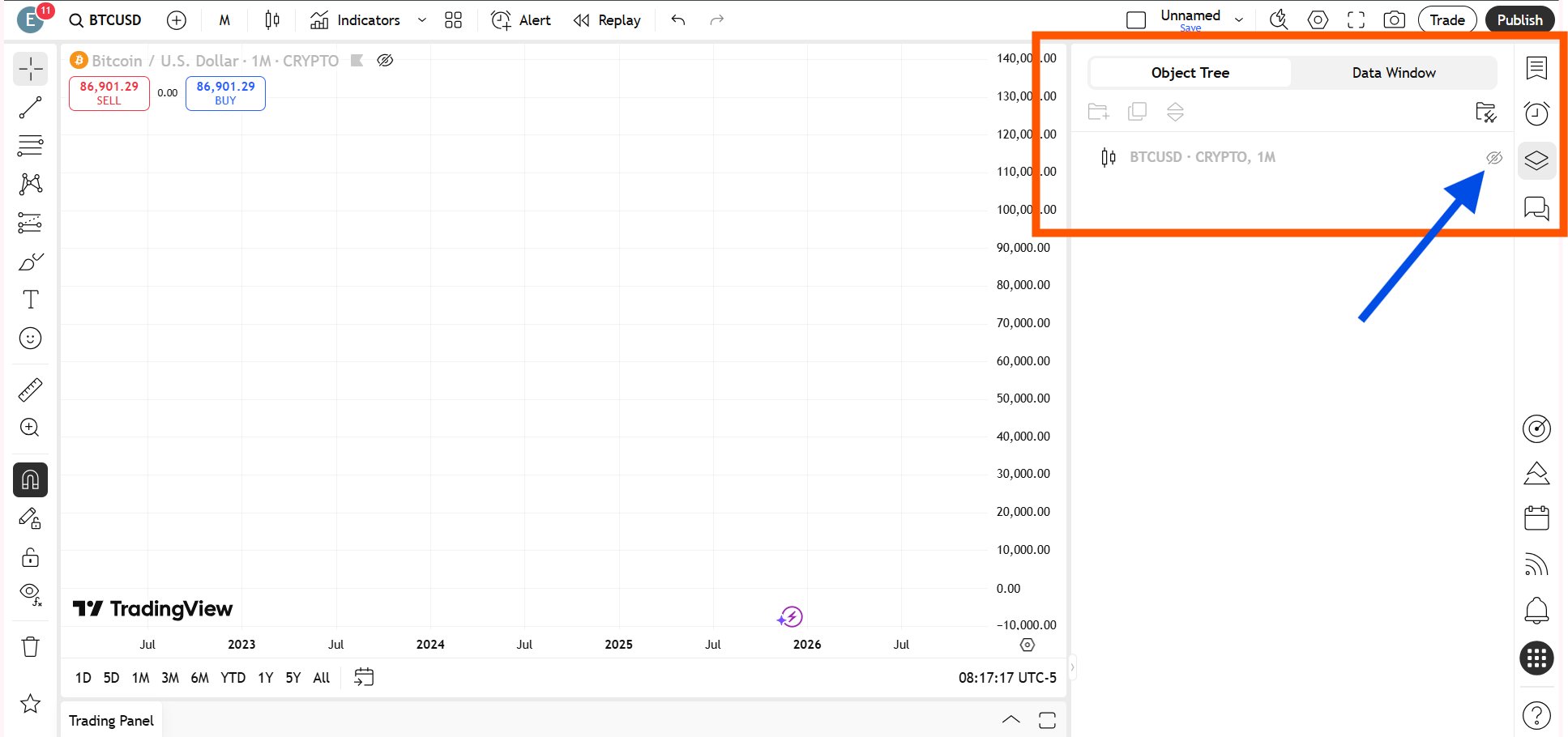
Candles Hidden from the Object Tree or Data Window

Another common TradingView chart problem occurs when candle visibility is disabled through the object tree or data window.

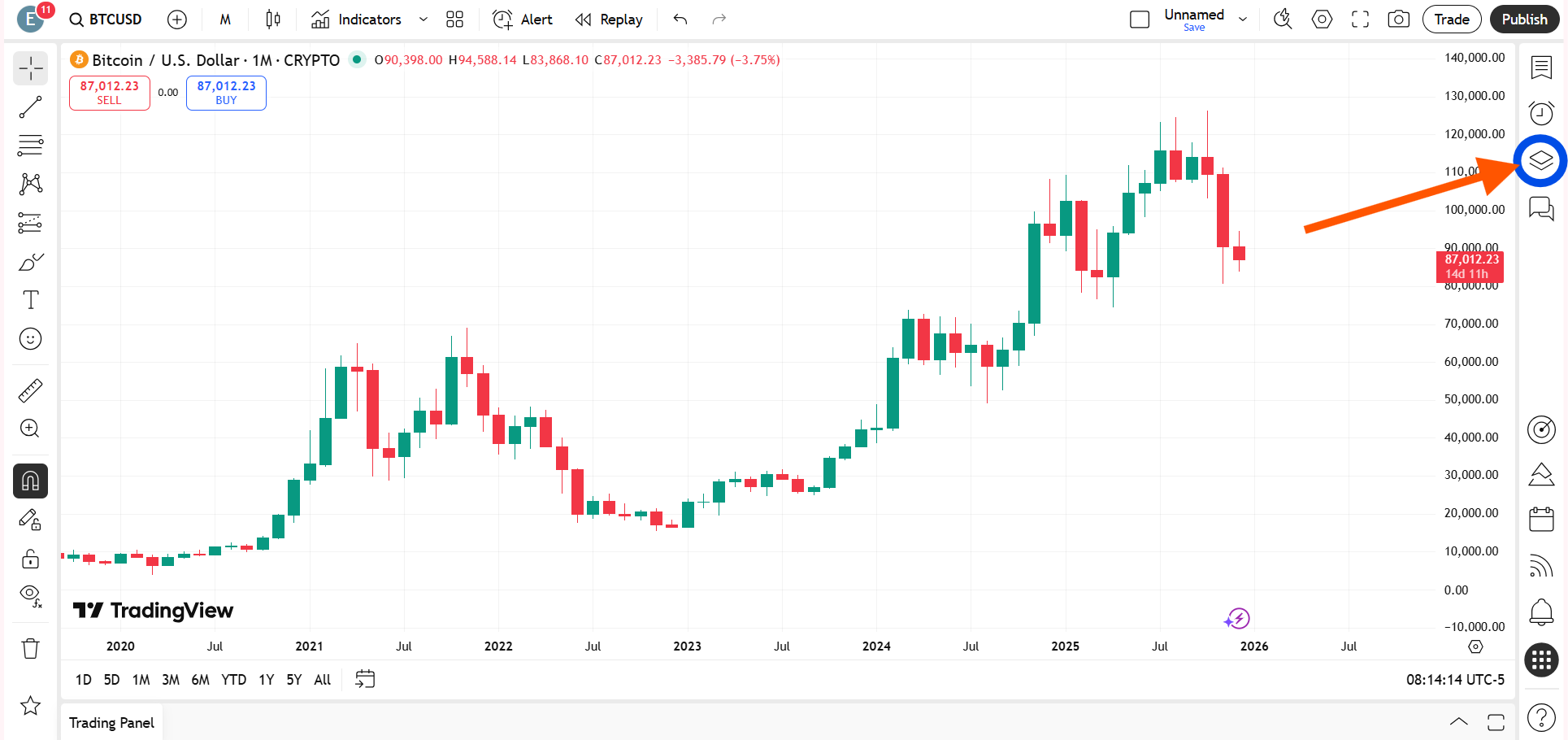
Just click on the Object Tree and Data Window on the right-side toolbar and check whether the eye icon is turned on or off.

By opening the object tree or data window and turning visibility back on, you can immediately unhide candles on TradingView.

Switched to a Different Chart Type by Mistake

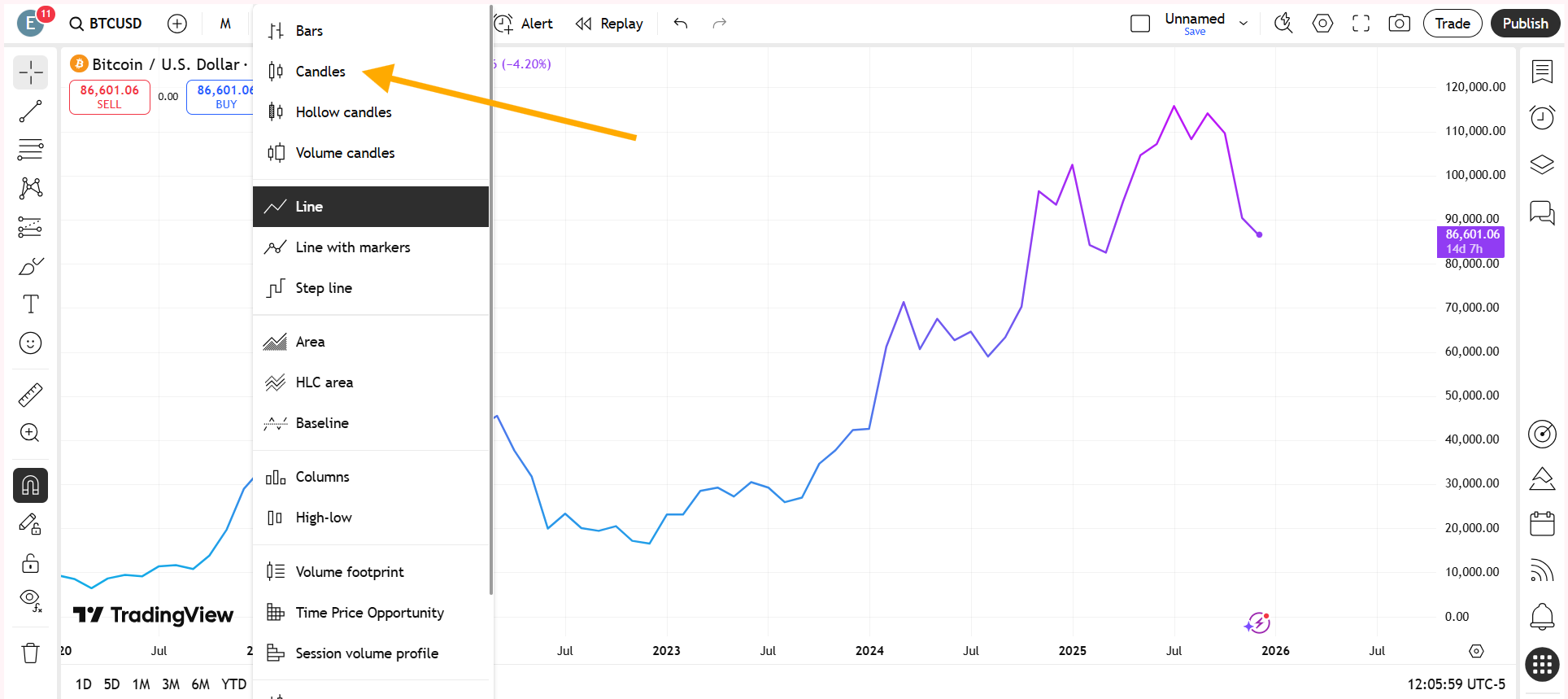
You may have accidentally changed the chart type to something like a line chart, and that is why you are no longer seeing candlesticks.

When the chart type is switched away from candlesticks, the candles do not disappear due to an error; they are simply replaced by another visual format. Switching the chart type back to candlestick instantly brings the candles back onto the chart, restoring the standard price view used for technical analysis.

How to change a line chart to a candlesticks chart on TradingView?

Open your chart on TradingView. Look at the top-left corner of the chart toolbar and click on the Chart Type icon. This icon usually displays the currently selected chart style, such as a line chart.

Switching the chart type back to candlestick instantly brings the candles back onto the chart, restoring the standard price view used for technical analysis.

From the dropdown menu, select Candlesticks. Once selected, the chart will instantly switch from a line chart to a candlestick chart.

Chart Background and Candle Color Clash

Sometimes the candles are present but completely blend into the chart background. If the candle color is identical or very close to the background color, the chart appears empty even though data is loaded.

This color clash usually occurs after applying a dark or custom theme or importing chart templates from other users.

Changing either the chart background color or the candle body and wick colors can immediately restore visibility and resolve the issue of candlesticks not showing on TradingView, without any technical troubleshooting.

Adjusting either the background color or the candle body and wick colors restores visibility and fixes the TradingView chart not showing issue without any technical troubleshooting.

Also Read – What is the difference between ICT and SMC?

Extreme Zoom Level Hiding Candlesticks

An extreme zoom-in or zoom-out level can also make candlesticks disappear on TradingView. When zoomed out too far, individual candles become too compressed to render clearly. When zoomed in too much, the chart may appear blank because the visible range contains no price data.

Resetting the chart view brings the candlesticks back into view immediately. Alternatively, you can press Alt + R.

This is one of the simplest fixes and should always be checked before assuming a chart loading problem.


Watch the full video below so you don’t miss any important steps.

This article is for informational purposes only and should not be considered financial advice. Investing in stocks, cryptocurrencies, or other assets involves risks, including the potential loss of principal. Always conduct your own research or consult a qualified financial advisor before making investment decisions. The author and publisher are not responsible for any financial losses incurred from actions based on this article. While efforts have been made to ensure accuracy, economic data and market conditions can change rapidly. The author and publisher do not guarantee the completeness or accuracy of the information and are not liable for any errors or omissions. Always verify data with primary sources before making decisions.

Why is My TradingView Chart Not Showing Anything?

When a TradingView chart is not showing, it is usually not a data or server issue. In most cases, the chart is loaded but the candlesticks are hidden due to candle style settings, an accidental chart type change, extreme zoom levels, or visibility being turned off in the object tree or data window. Checking these settings typically restores the chart instantly.

Why is My TradingView Chart Not Loading Properly?

In some cases, a TradingView chart may not load properly due to a temporary technical glitch or a short connectivity issue. This can happen because of browser cache problems, momentary internet interruptions, or brief platform-side delays. When this occurs, simply refreshing the page or reloading the chart usually resolves the issue. If the problem persists, checking your internet connection or reopening the chart in a new tab can help restore normal chart loading on TradingView.

3 Easy Methods to Hide Candlesticks in TradingView

Learn three simple ways to hide candlesticks in TradingView and keep your charts clean, clear, and easy to analyze.

TradingView is one of the most widely used charting platforms among traders and investors. Although candlesticks are the default chart type, there are many situations where traders prefer to hide candlesticks to keep the chart clean and focused.

TradingView does not provide a single dedicated button called “Hide Candlesticks,” but there are three simple and effective methods that allow you to remove candlesticks from your chart.

Why Do Traders Hide Candlesticks in TradingView?

Traders often choose to hide candlesticks to reduce visual clutter and keep their charts clean, simple, and easier to read, especially when too much price detail starts to overwhelm the view. Many do this to focus more clearly on indicators such as moving averages, VWAP, or oscillators, where the signal matters more than individual candle movements. Candlesticks are also hidden when traders want to study key price levels, zones, and overall market structure without unnecessary distractions. In drawing-heavy setups filled with trendlines, boxes, or Fibonacci tools, removing candlesticks helps bring clarity to the analysis and allows traders to concentrate on decision-making rather than noise.

Also Read – Candlesticks Not Showing or Visible in TradingView? – Complete Solution Guide

Method 1: Hide Candlesticks Using Chart Settings in TradingView

This method allows you to completely remove candlesticks by modifying the candlestick appearance settings. It is the most accurate and controlled way to hide candles without changing the chart type.

You need to right-click anywhere on the chart in TradingView to open the chart menu, and then click on Settings from the menu options.

Steps:

  1. You need to right-click anywhere on the TradingView chart to open the chart menu.
  2. You need to click on Settings from the menu options.
  3. You need to open the Symbol tab inside the settings panel.
  4. You need to uncheck the Body option so that the candle body is no longer visible.
  5. You need to uncheck the Wick option so that the candle wicks disappear from the chart.
  6. You need to uncheck the Border option so that the candle outlines are removed.
  7. You need to click OK to apply the changes.
Once the body, wick, and border are turned off, the candlesticks will no longer be visible on the chart.

After disabling the body, wick, and border, the candlesticks will be completely hidden from the chart.

Method 2: Hide Candlesticks from the Top-Left “More” Menu

This is the fastest method to hide candlesticks and works directly from the chart interface without opening detailed settings.

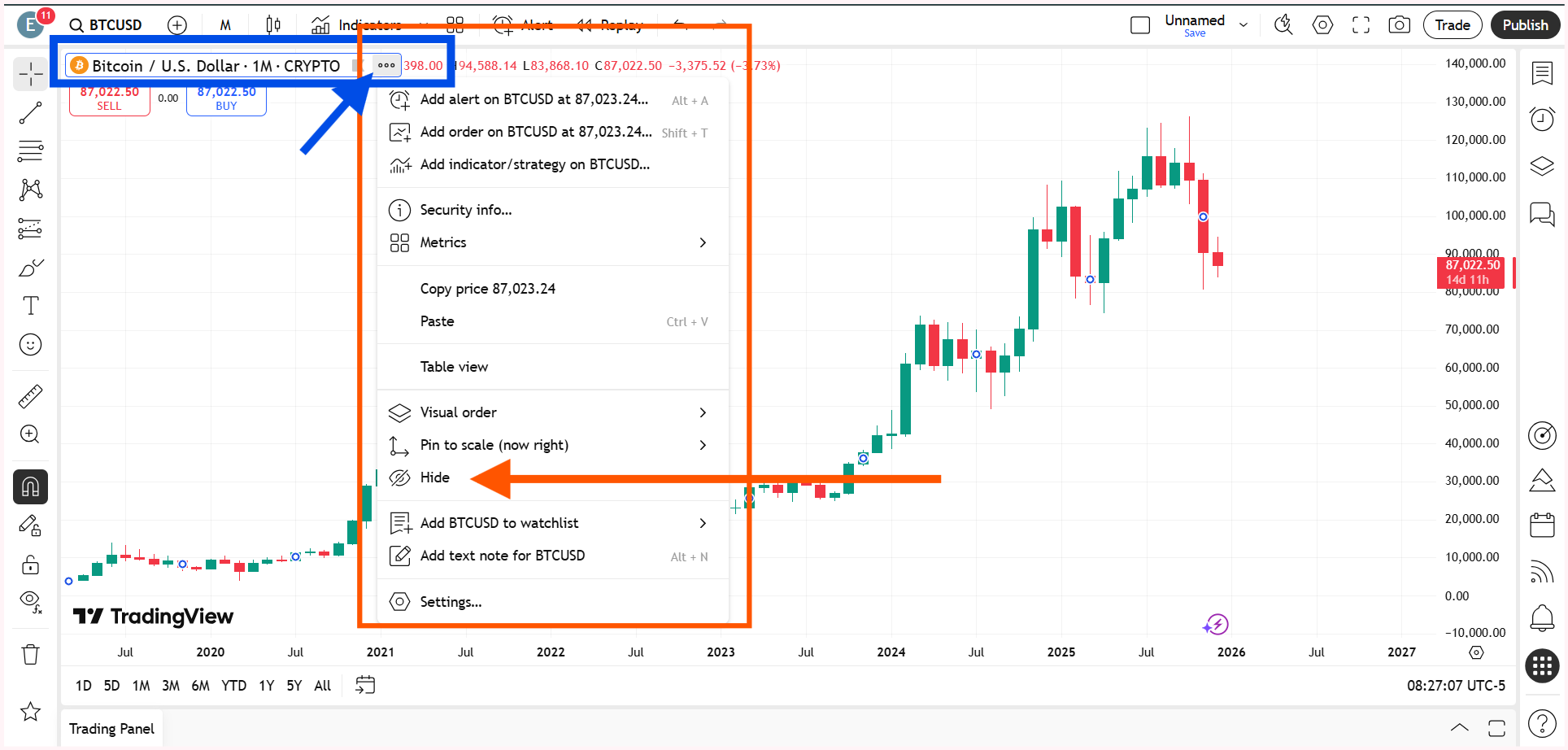
As soon as you click Hide symbol, the candlesticks will instantly disappear from the chart.

Steps:

  1. You need to look at the top-left corner of the chart where the symbol name is displayed.
  2. You need to click on the three dots icon, also known as the More options menu.
  3. You need to select Hide Symbol from the dropdown list.

Once you click Hide symbol, the candlesticks will instantly disappear from the chart.

Also Read – What is the difference between ICT and SMC?

Method 3: Hide Candlesticks Using Object Tree and Data Window

This is probably the easiest and fastest way to hide the candlesticks on the chart.

You can access the Object Tree and the Data Window from the right-side toolbar in TradingView.
  1. You need to open the Object Tree & Data Window from the right-side toolbar in TradingView.
  2. You need to locate the main price symbol inside the Object Tree.
  3. You need to click on the eye icon next to the symbol to hide it from the chart.
You need to click on the eye icon next to the symbol inside the Object Tree or the Data Window to hide the candlesticks from the chart.

Alternatively, you can do the same within the Data Window, using the same option the same option on the right-side toolbar in TradingView.

Both options allow you to control the visibility of candlesticks without altering chart layout or indicator settings.


Watch the video below to avoid missing any important steps.

This article is for informational purposes only and should not be considered financial advice. Investing in stocks, cryptocurrencies, or other assets involves risks, including the potential loss of principal. Always conduct your own research or consult a qualified financial advisor before making investment decisions. The author and publisher are not responsible for any financial losses incurred from actions based on this article. While efforts have been made to ensure accuracy, economic data and market conditions can change rapidly. The author and publisher do not guarantee the completeness or accuracy of the information and are not liable for any errors or omissions. Always verify data with primary sources before making decisions.

4 Simple Steps to Start Paper Trading in TradingView in 2025

5 Simple Steps to Start Paper Trading in TradingView in 2025

If you are someone who wants to learn trading without using real money, then paper trading is the perfect choice for you.

TradingView is one of the best platforms available in 2025 for paper trading. It gives you live charts, technical tools, and a demo account to practice trading safely.

In this article, you will learn how to start paper trading in TradingView in just 4 simple steps. We will also cover how you can practice Bitcoin trading in TradingView.

What is Paper Trading?

Paper trading means practicing trading with virtual money. You can buy and sell stocks, cryptocurrencies, or forex without risking your real cash. It works just like real trading, but all the profits and losses are fake.

This is a great way to learn how the market works and test your strategies.

Also Read – What is the difference between ICT and SMC?


Step-by-Step Guide to Start Paper Trading in TradingView

Step 1: Create a Free TradingView Account

To get started, visit tradingview.com and sign up with your email ID.

You can also use your Google, Apple, X or Facebook account to create an account.

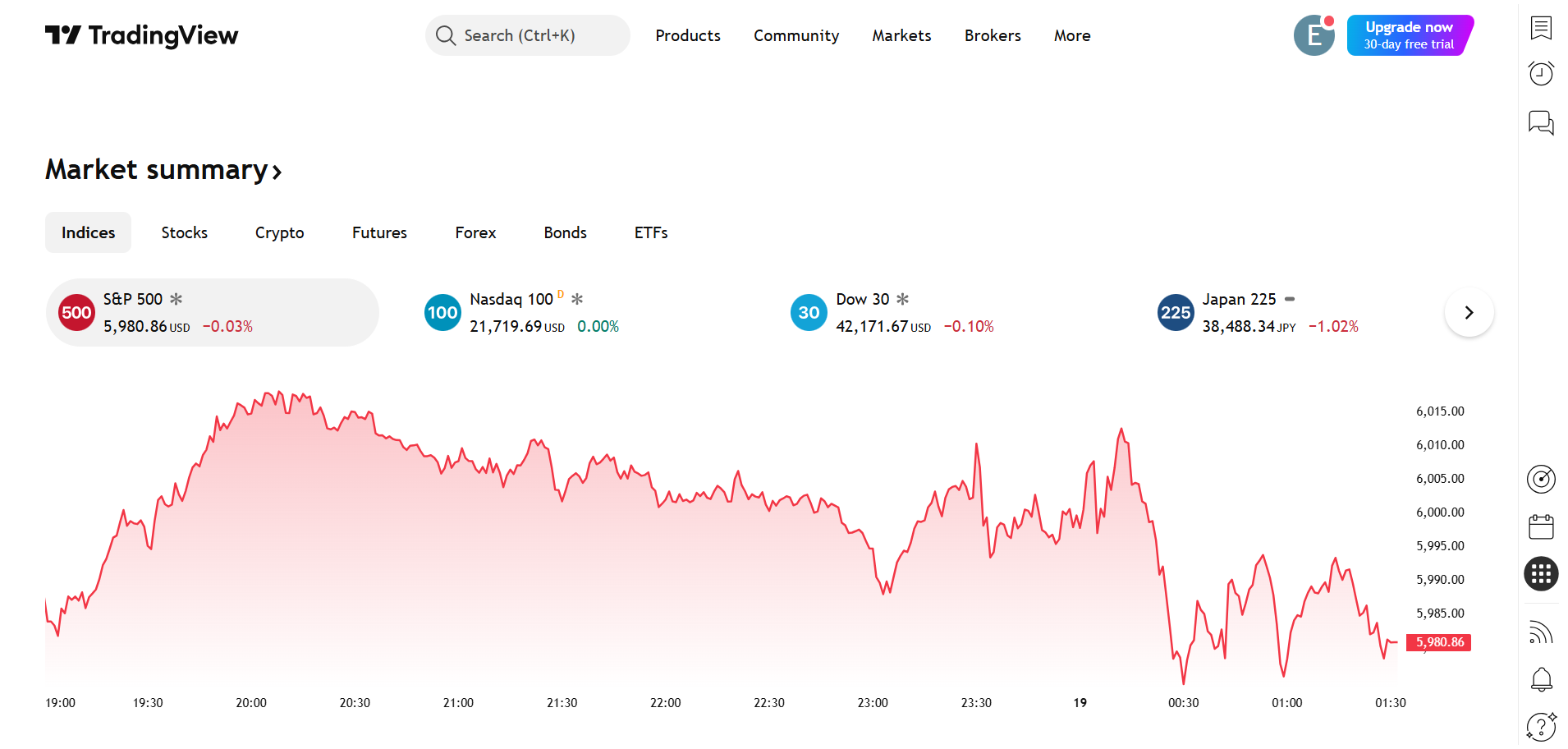
Once you verify your email, your free TradingView account will be ready.

TradingView homepage after creating an account

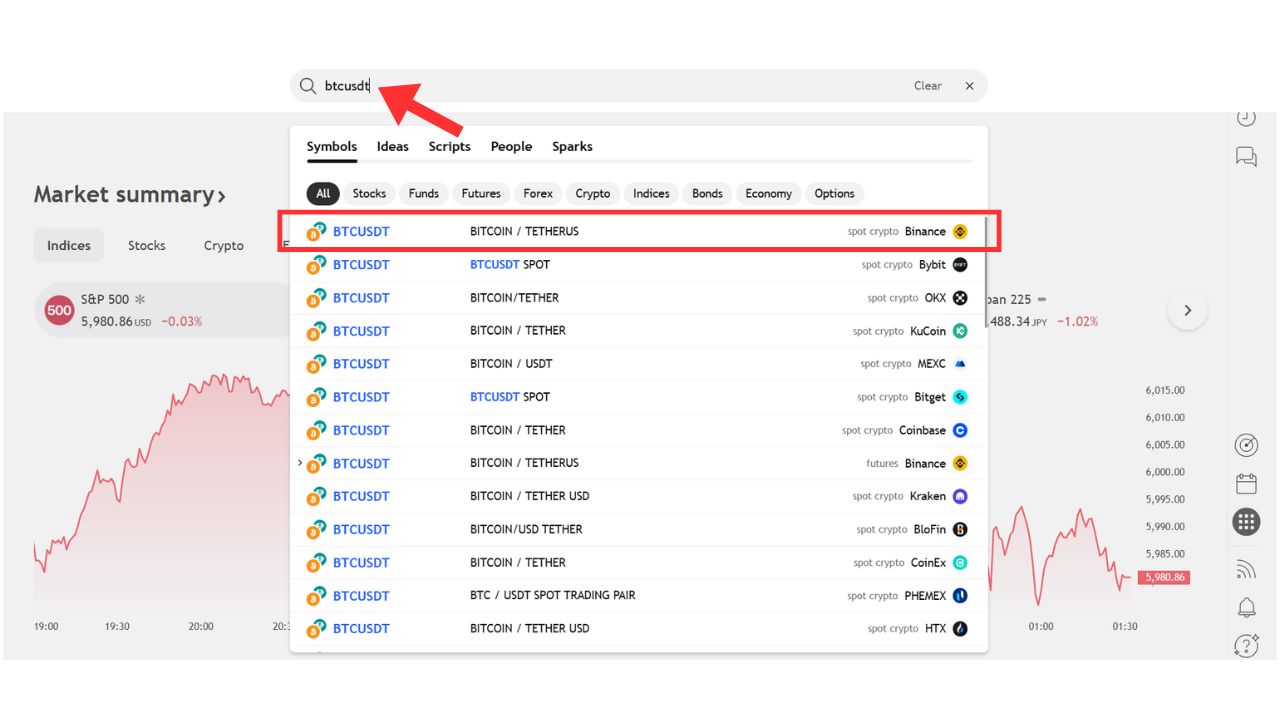
Step 2: Use the search bar to open a chart for the asset you want to trade.

After logging in, go to the search bar at the top of the screen. Type the name or symbol of the stock or cryptocurrency you want to practice trading.

For example, if you want to do paper trading in Bitcoin, type BTCUSDT, select the one from the Binance exchange, and launch the chart.

BTCUSDT Search Result on TradingView

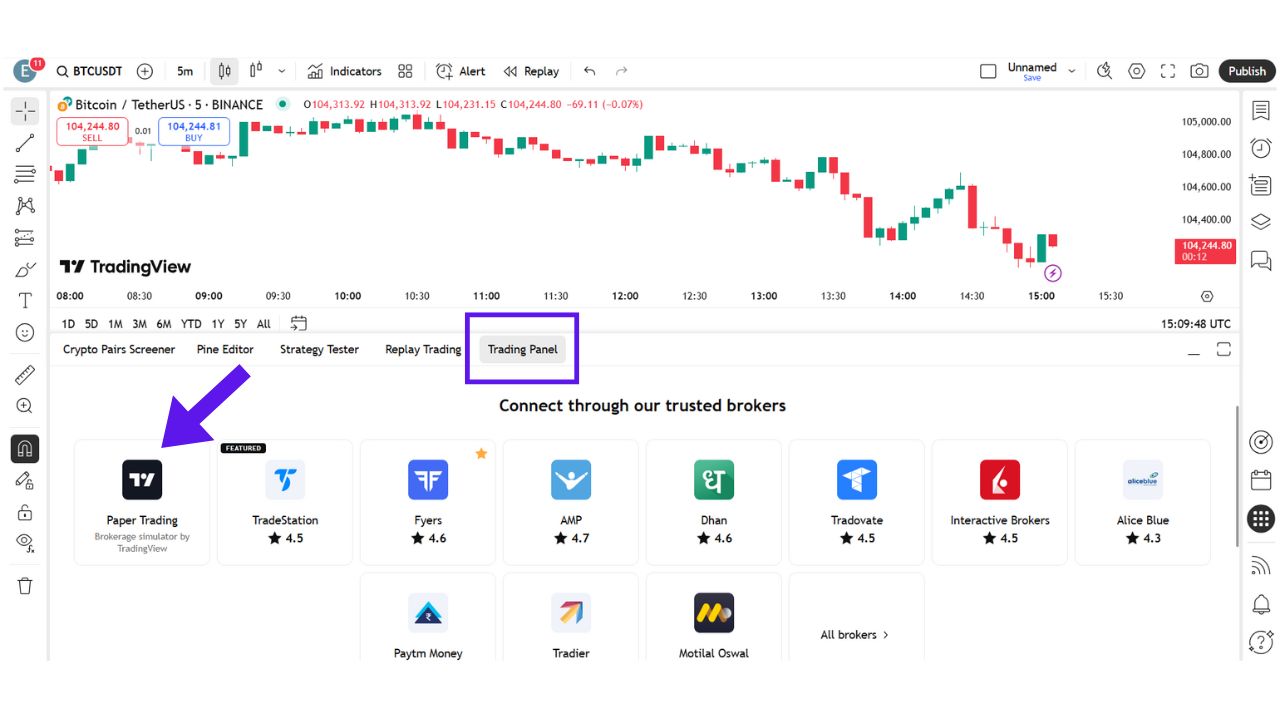
Step 3: Go to the trading panel below and connect to Paper Trading.

Go to the trading panel and connect to Paper Trading.

At the bottom of the chart screen, click on the “Trading Panel” tab.

You will see a few broker options. Find the one that says “Paper Trading – Brokerage simulator by TradingView” and click “Connect.”

Your paper trading account will now be active, and you will receive virtual money to practice with. Normally, TradingView gives $100,000 in fake funds for practice, but you can adjust this amount based on your needs.

Step 4: Place Your First Trade

Feel The Candlesticks

Once your account is connected, you can place a trade.

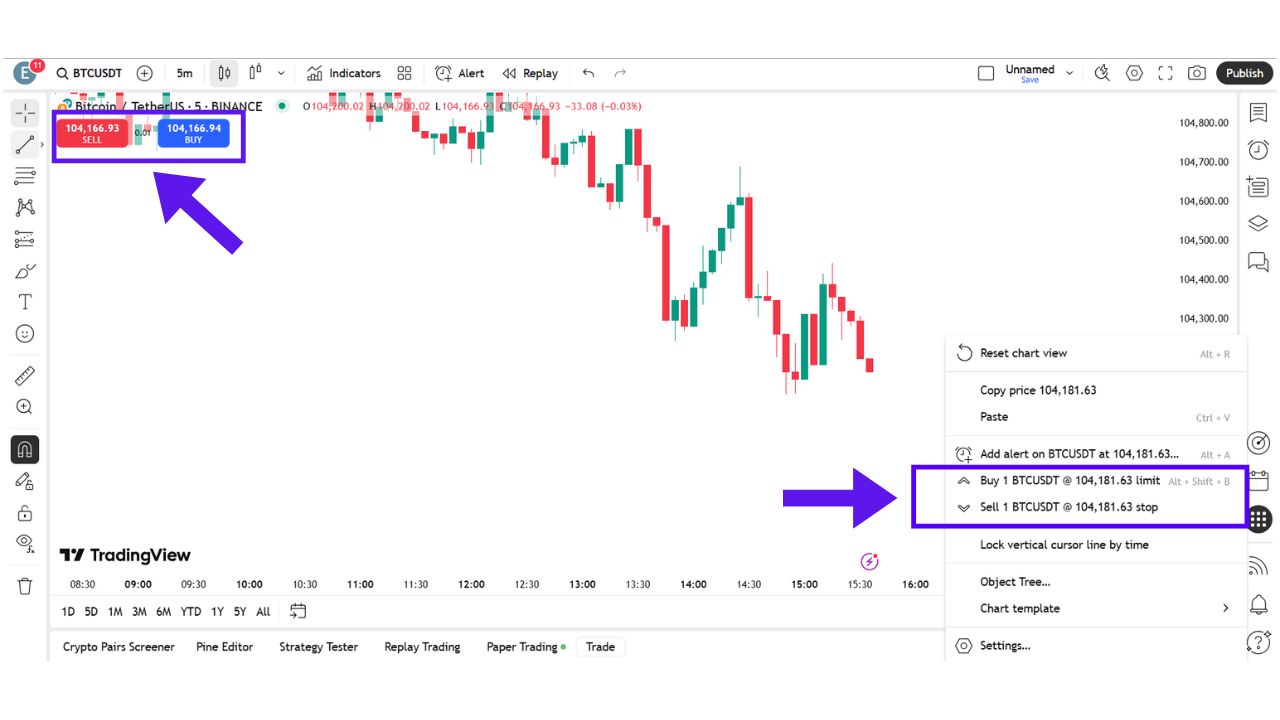
Just right-click on the chart at the price where you want to buy or sell. Choose “Buy” or “Sell,” then adjust the Buy/Sell price to your desired level. You can choose the order type as either a Limit Order or a Stop Order.

After that, click on the Buy or Sell button. Your first trade is now live using virtual money.

You can also use the red and green buttons on the top left corner of the chart for Sell and Buy orders respectively. Adjust the trade parameters within that window and click “Order.”

At the bottom of the screen under “Paper Trading,” you’ll find tabs like “Positions,” “Orders,” and “History.” These tabs show your open trades, profits or losses, balance, and order history.

You can close trades from here as well, and review your past trades to see what worked and what didn’t.

Also Read – Grok 3 for Trading Strategy-A Game Changer for Traders

Please watch the video here if you’d like a visual guide –

Why Paper Trading is Helpful?

TradingView allows you to experience real-time price movements without using real money. You can use all the technical tools available on the platform and test your strategies.

This helps build confidence before you move to live trading. It also helps you understand how orders, stop-loss, and take-profit work in a real market situation.

The Bottom Line

Paper trading is the safest and smartest way to start your trading journey. TradingView makes it super easy for anyone to practice. Whether it is stocks, forex, or cryptocurrencies like Bitcoin, you can test everything without any risk. Just follow the steps explained in this article and you’ll be ready to trade like a pro – with zero risk. Practice regularly and you’ll gain the confidence you need for live trading.

This article is for educational purposes only. Trading in financial markets involves risks. Please learn properly and consult an expert before investing real money.

6 Easy Steps to Run Pine Script v6 in TradingView

TradingView provides its own programming language called Pine Script, which is used to create indicators and strategies prominently. The latest version released by TradingView for Pine Script is version 6, which comes with extra features.

If you’re interested in learning how to build and test your own trading indicators or strategies, Pine Script is the tool for you.

Pine Script is the coding language used in TradingView, one of the most popular charting platforms for traders.

TradingView recently introduced Pine Script version 6, which comes with more features and improvements.

But many beginners ask this common question: “How do I run Pine Script v6 on TradingView?”
Don’t worry. In this article, we will walk you through every step in a simple way. No complicated language. Just clear, beginner-friendly instructions.

What is Pine Script?

Pine Script is a programming language created by TradingView. It is used to create custom indicators, alerts, and strategies on charts.

For example, you can make your own Moving Average, RSI indicator, or even backtest a buy-sell strategy using Pine Script.

What’s New in Pine Script v6?

Version 6 of Pine Script includes some major updates:

  • Better performance and speed
  • New built-in functions and features
  • Cleaner and more flexible syntax
  • Easier to write and read code

If you are starting fresh, it’s always good to begin with the latest version.

Step-by-Step Guide to Run Pine Script v6 on TradingView

Let’s now look at the actual steps to run Pine Script v6.

Step 1: Open TradingView

First, visit www.tradingview.com. You can use the free version or sign in with a free account.

Once you’re on the site:

  • Click on “Chart” at the top.
  • This will open the TradingView chart screen.
Step 2: Open Pine Editor

At the bottom of your chart screen, you will see a tab named “Pine Editor.”

  • Click on it to open the Pine Script editor.
  • This is where you can write and run your code.
Step 3: Write or Paste Your Pine Script Code

Now it’s time to enter your Pine Script code.

To use version 6, make sure your script starts with this line:

//@version=6

Let’s look at a very basic example:

//@version=6
indicator("Simple MA", overlay=true)
ma = ta.sma(close, 14)
plot(ma, color=color.orange, title="14-period MA")

This code will create a simple 14-period moving average.

Step 4: Add Script to Chart

Once you have written the script:

  • Click on the “Add to chart” button (above the editor window).
  • This will apply your custom indicator or strategy to the chart.

If there are no errors, the script will run smoothly, and you will see the result on your chart.

Step 5: Save Your Script

Always remember to save your work.

  • Click on the “Save” icon.
  • Give your script a name like “My First Script.”

This way, you can come back later and make changes.

Step 6: Fix Any Errors (If Any)

If your script doesn’t run and shows an error:

  • Read the error message below the editor.
  • Double-check your syntax (correct version, brackets, etc.)
  • Use the TradingView Help Center or forums for help if stuck.

Also Read – 5 Best AI Tools for Pine Script to Supercharge Your TradingView Strategies (2025)

The Bottom Line

Running Pine Script v6 in TradingView is not as hard as it sounds. Once you understand the steps, it becomes very simple.

Whether you want to create your own custom indicator or test a trading idea, Pine Script can help you a lot.

Start small. Experiment. And with time, you’ll become more confident in creating your own trading tools.

5 Simple Steps to Convert TradingView Indicators to Strategies

convert TradingView indicators to strategies

Many traders start with indicators. They show where price moves and where trends may form. But signals alone do not place trades for you. A strategy can run your rules automatically and show if your plan works over time. Converting an indicator to a strategy gives you real feedback on performance. You learn what works and what fails. This guide walks you through each step in plain language so you can build your first Pine Script strategy today.


What Are Indicators and Strategies?

  • Indicator
    • Shows how price behaves
    • Uses functions like plot() and plotshape()
    • Answers “What is happening?”
  • Strategy
    • Places hypothetical trades based on rules
    • Uses functions like strategy.entry() and strategy.exit()
    • Answers “What should I do?”

Example
An RSI indicator plots a line that shows overbought or oversold levels.

A strategy can place a buy order when RSI falls below 30 and place a sell order when it rises above 70. This way you can test how many times this plan makes money before trading live.


5 Steps and Best Practices for Converting Indicator Code to Strategy Code

Follow these five steps and keep best practices in mind to avoid common pitfalls.

1. Identify Clear Entry and Exit Rules

  • Turn vague signals into precise actions
  • Bad: “RSI crosses above 30”
  • Good: “BUY when RSI crosses above 30”
  • Limit rules to one or two at first
  • Write each rule on its own line

Why this matters
Clear rules help your script trigger trades reliably. Fewer rules make testing faster and outcomes easier to understand.


2. Switch from indicator() to strategy()

  • At the top replace: //@version=5 indicator("My Indicator", overlay=true) with //@version=5 strategy("My Strategy", overlay=true)
  • Remove all plot() calls used only for signals
  • Use strategy.entry() for buys and sells

Key Fix
Always start with strategy() not indicator(). This lets TradingView know you want backtests.


3. Replace plotshape() with Order Functions

  • Remove: plotshape(rsi < 30, style=shape.circle)
  • Add entry: if ta.crossover(rsi, 30) strategy.entry("Buy", strategy.long)
  • Add exit: if ta.crossunder(rsi, 70) strategy.exit("Sell", from_entry="Buy")

Best Practice
Group your entry and exit logic near each other. This makes code easier to read and debug.


4. Add Backtesting Settings

  • Use realistic capital and fees
  • Example: strategy( initial_capital=10000, commission_type=strategy.commission.cash_per_order, commission_value=5 )
  • initial_capital sets test funds
  • commission_value charges a fee per order

Why This Matters
Fees can turn a profitable idea into a losing one. Always include realistic costs.


5. Include Stop Loss and Take Profit

  • Prevent big losses and secure gains
  • Add to your strategy: strategy.exit( "Exit", from_entry="Buy", loss=50, profit=100 )
  • loss stops trades down $50
  • profit takes gains at $100

Tip
Test multiple values to see which gives the best balance of win rate and drawdown.


6. Test, Tweak, Repeat

  • Open the Strategy Tester tab
  • Look at net profit, win rate, and drawdown
  • Common errors:
    • No data means rules never trigger
    • Repainting means your script uses future data
  • Fix:
    • Check conditions can happen in your time frame
    • Use high and low instead of close for entries

Best Practice
Keep a change log. Note each tweak and its impact on results. This helps you learn what matters most.

Also Read – 5 Best AI Tools for Pine Script to Supercharge Your TradingView Strategies (2025)


Real Example: Moving Average Crossover

Below is a full before and after so you can see every change.

Before (Indicator Only)

//@version=5
indicator("MA Crossover", overlay=true)
maFast = ta.sma(close, 9)
maSlow = ta.sma(close, 21)
plot(maFast, color=color.green)
plot(maSlow, color=color.red)

This script only draws two lines. No trades.


After (Full Strategy)

//@version=5
strategy("MA Crossover Strategy", overlay=true,
  initial_capital=10000,
  commission_type=strategy.commission.cash_per_order,
  commission_value=5
)

maFast = ta.sma(close, 9)
maSlow = ta.sma(close, 21)

// Entry rule
if ta.crossover(maFast, maSlow)
    strategy.entry("Buy", strategy.long)

// Exit rule
if ta.crossunder(maFast, maSlow)
    strategy.exit("Sell", from_entry="Buy")

// Risk management
strategy.exit(
  "RiskExit",
  from_entry="Buy",
  loss=50,
  profit=100
)

This script will run backtests with $10 000 capital and $5 fees per trade. It buys on a fast MA crossover and closes on crossunder or when profit or loss limits hit.


3 Mistakes That Wreck Your Strategy

  1. No Volume Check
    • Low trading volume can give fake signals.
    • Fix by adding and volume > 100000 to entry.
  2. Ignoring Fees
    • A fee free backtest looks better than reality.
    • Always include commission settings.
  3. Overfitting
    • Too many rules fit past patterns but fail in live markets.
    • Keep your code simple and test on different symbols.

FAQs

Can TradingView automate live trades?
No. TradingView backtests only. Use alerts to link with brokers for real orders.

Why is my strategy not placing trades?
Check your entry logic. Make sure conditions can occur. Confirm your capital settings are not zero.

How do I avoid repainting?
Never use close on the same bar. Use high or low or reference previous bars.


Conclusion

Converting a TradingView indicator to a strategy takes five clear steps. You define rules. You switch to strategy() functions. You set backtest and risk settings. Then you test and learn. Keep code simple. Track each change. Over time you will build a robust plan that works for you. Start today by picking your favorite indicator and following these steps. Happy coding and profitable trading!

Also Read – How to Convert Any TradingView Indicator into a Strategy Using Grok 3?