TradingView is one of the most widely used charting platforms among traders and investors. Although candlesticks are the default chart type, there are many situations where traders prefer to hide candlesticks to keep the chart clean and focused.
TradingView does not provide a single dedicated button called “Hide Candlesticks,” but there are three simple and effective methods that allow you to remove candlesticks from your chart.
Why Do Traders Hide Candlesticks in TradingView?
Traders often choose to hide candlesticks to reduce visual clutter and keep their charts clean, simple, and easier to read, especially when too much price detail starts to overwhelm the view. Many do this to focus more clearly on indicators such as moving averages, VWAP, or oscillators, where the signal matters more than individual candle movements. Candlesticks are also hidden when traders want to study key price levels, zones, and overall market structure without unnecessary distractions. In drawing-heavy setups filled with trendlines, boxes, or Fibonacci tools, removing candlesticks helps bring clarity to the analysis and allows traders to concentrate on decision-making rather than noise.
Also Read – Candlesticks Not Showing or Visible in TradingView? – Complete Solution Guide
Method 1: Hide Candlesticks Using Chart Settings in TradingView
This method allows you to completely remove candlesticks by modifying the candlestick appearance settings. It is the most accurate and controlled way to hide candles without changing the chart type.
Steps:
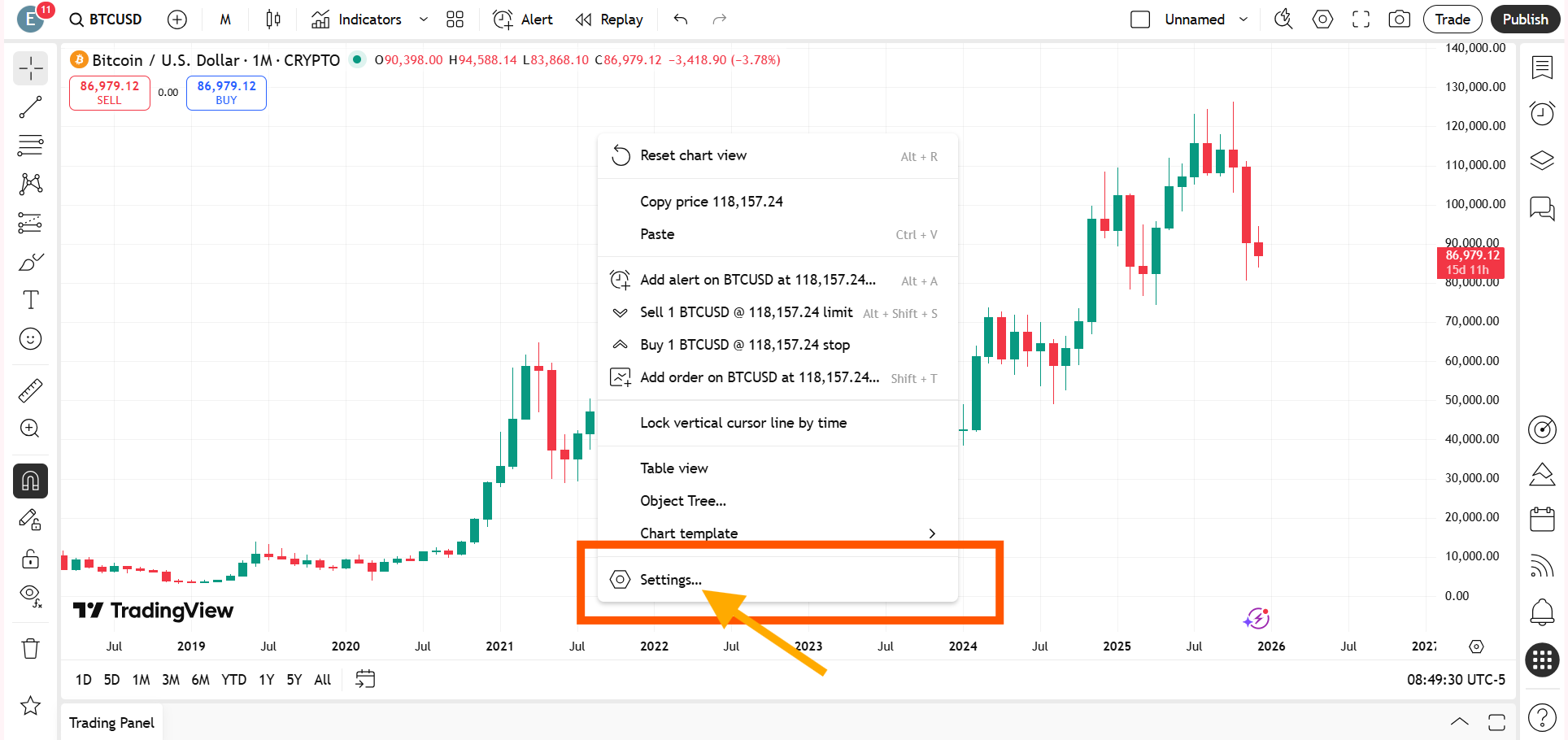
- You need to right-click anywhere on the TradingView chart to open the chart menu.
- You need to click on Settings from the menu options.
- You need to open the Symbol tab inside the settings panel.
- You need to uncheck the Body option so that the candle body is no longer visible.
- You need to uncheck the Wick option so that the candle wicks disappear from the chart.
- You need to uncheck the Border option so that the candle outlines are removed.
- You need to click OK to apply the changes.
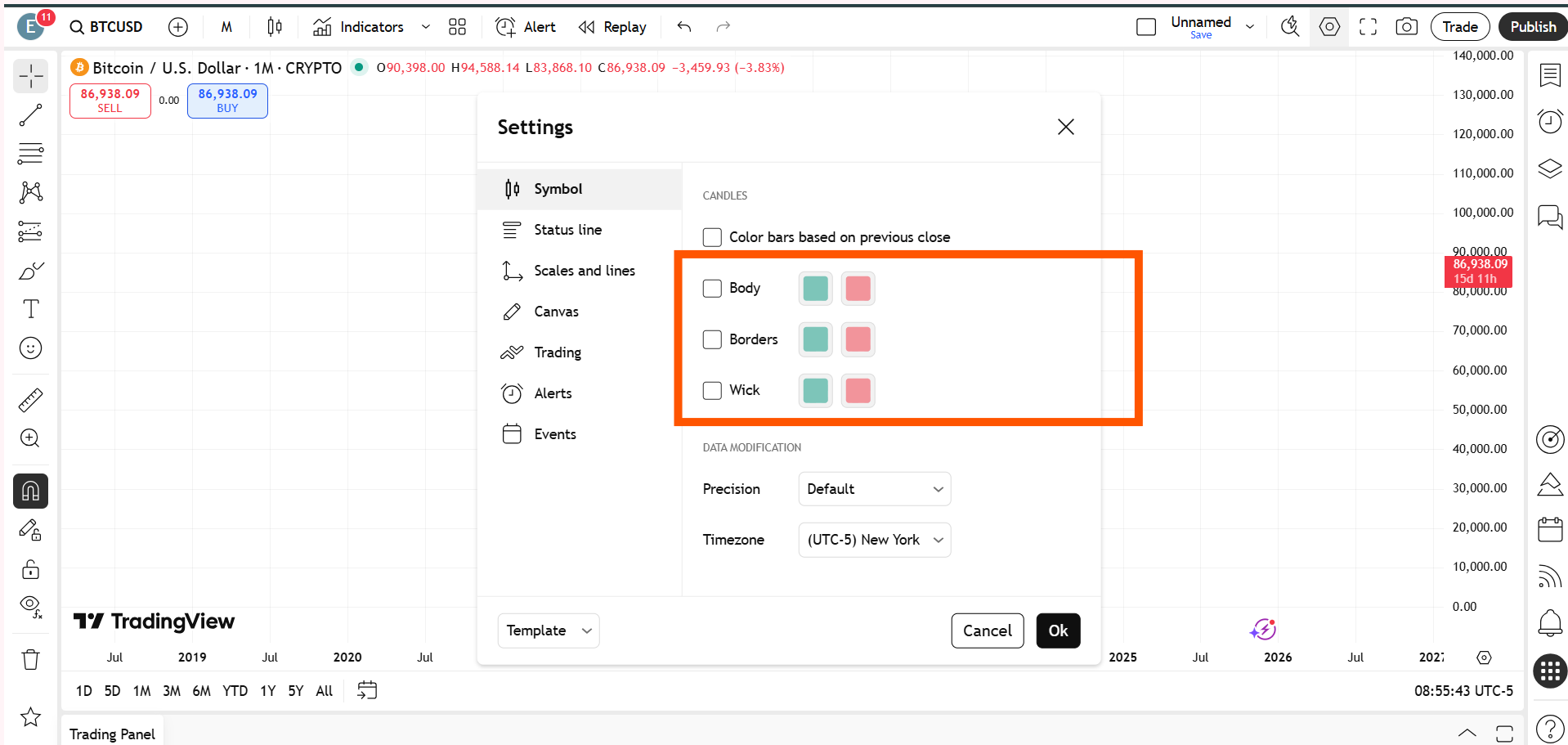
After disabling the body, wick, and border, the candlesticks will be completely hidden from the chart.
Method 2: Hide Candlesticks from the Top-Left “More” Menu
This is the fastest method to hide candlesticks and works directly from the chart interface without opening detailed settings.
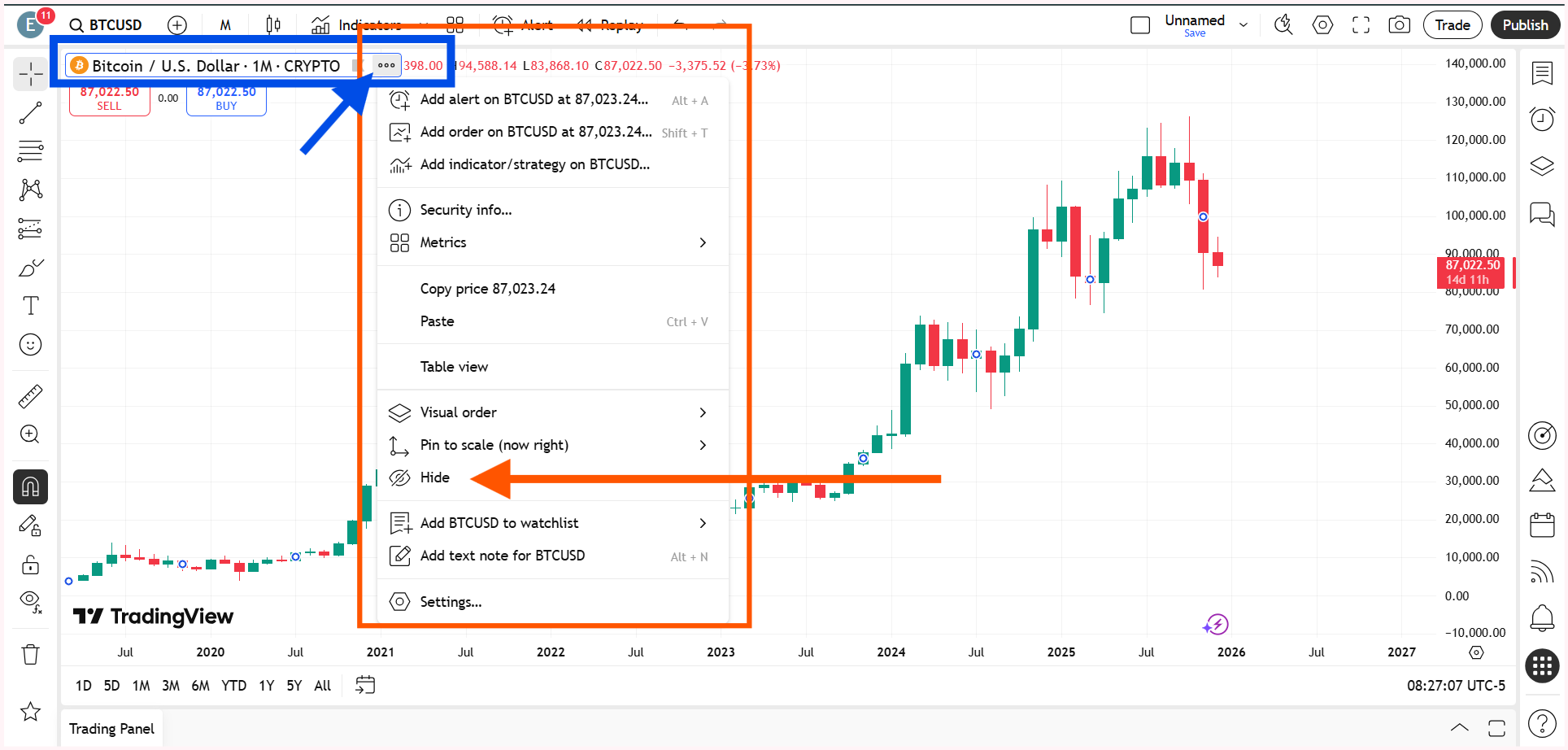
Steps:
- You need to look at the top-left corner of the chart where the symbol name is displayed.
- You need to click on the three dots icon, also known as the More options menu.
- You need to select Hide Symbol from the dropdown list.
Once you click Hide symbol, the candlesticks will instantly disappear from the chart.
Also Read – What is the difference between ICT and SMC?
Method 3: Hide Candlesticks Using Object Tree and Data Window
This is probably the easiest and fastest way to hide the candlesticks on the chart.
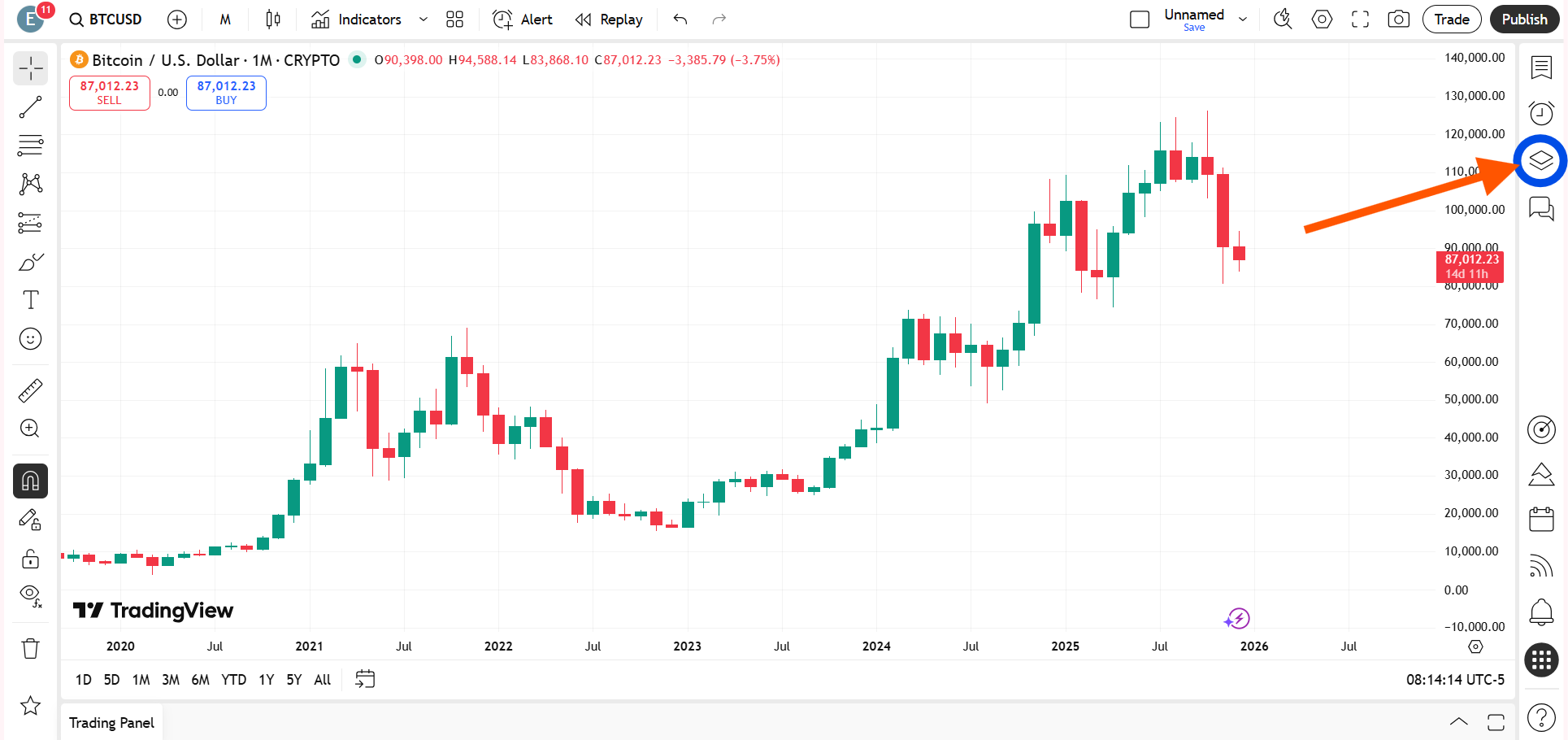
- You need to open the Object Tree & Data Window from the right-side toolbar in TradingView.
- You need to locate the main price symbol inside the Object Tree.
- You need to click on the eye icon next to the symbol to hide it from the chart.
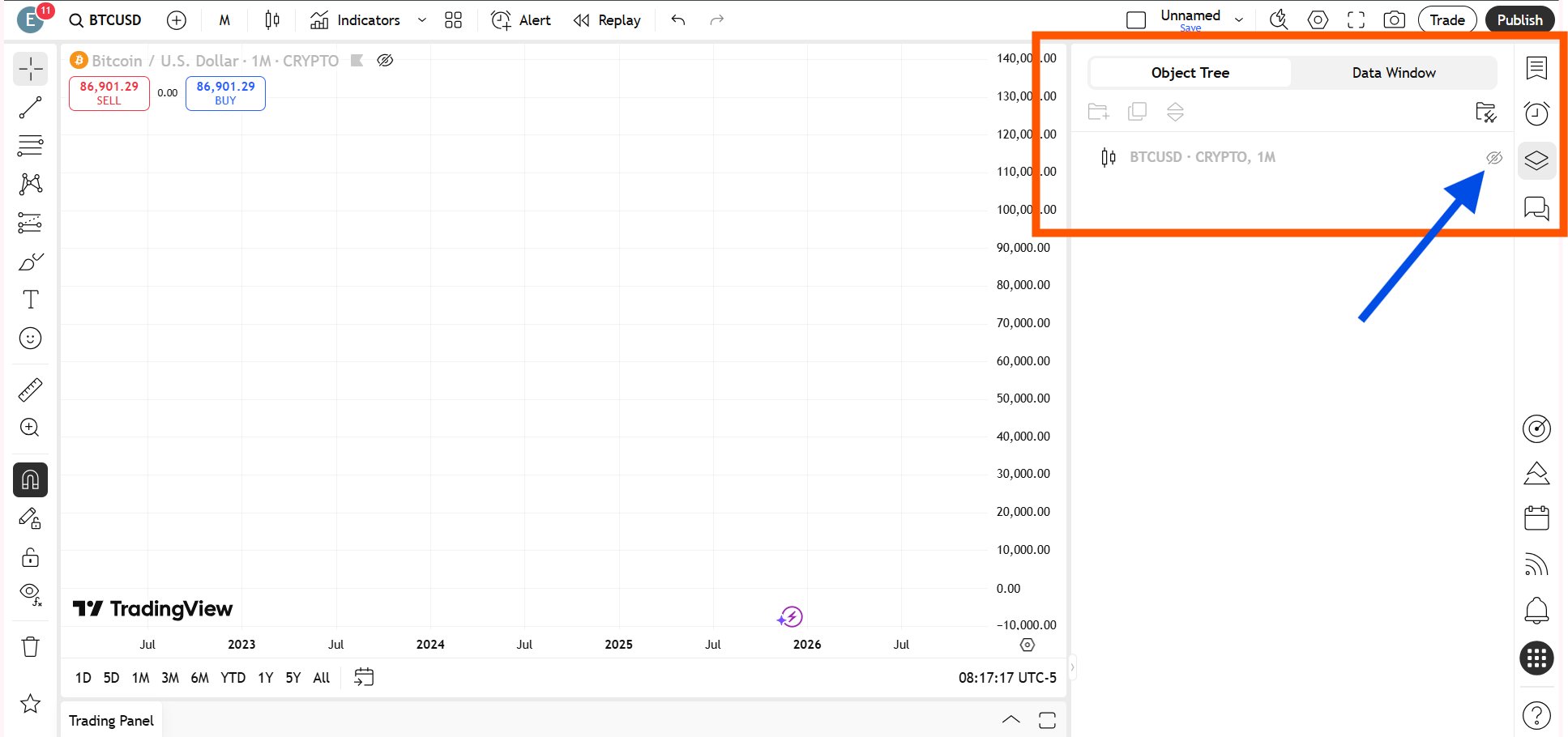
Alternatively, you can do the same within the Data Window, using the same option the same option on the right-side toolbar in TradingView.
Both options allow you to control the visibility of candlesticks without altering chart layout or indicator settings.
Watch the video below to avoid missing any important steps.
This article is for informational purposes only and should not be considered financial advice. Investing in stocks, cryptocurrencies, or other assets involves risks, including the potential loss of principal. Always conduct your own research or consult a qualified financial advisor before making investment decisions. The author and publisher are not responsible for any financial losses incurred from actions based on this article. While efforts have been made to ensure accuracy, economic data and market conditions can change rapidly. The author and publisher do not guarantee the completeness or accuracy of the information and are not liable for any errors or omissions. Always verify data with primary sources before making decisions.